Using plugins
Plugins bring your own flows into ratchet. They change how agents start and react to what agents do. You see what each one can do before anything from it runs.
Plugins come with the first ratchet release after 0.2.1.
What a plugin is
A plugin is a folder with a plugin file in it. Depending on what it asks for, a plugin can:
- change how the agents ratchet starts are launched, for example send Claude's requests through a local proxy, or add Claude skills, agents and hooks;
- run a helper program next to ratchet while the plugin is on;
- react when an agent starts, works, asks a question, wants permission or finishes: put a note on its card, send a phone alert, keep the PC awake or run a command;
- with code of its own, start new agents with a label, make a worktree for a step, and ask you to approve or reject a step.
Plugins only touch agents that ratchet starts. Agents you start in a terminal or in VS Code are left alone.
Most plugins are descriptions only: the plugin file says what should happen and ratchet does it. Some plugins carry their own code. Those are marked has code everywhere they appear.
Two plugins ship with ratchet and show under Suggested until you install them:
| Plugin | What it does |
|---|---|
| headroom | Starts the headroom proxy program and sends new agents through it. You install Headroom yourself; if it's missing, the plugin shows how and agents start normally. Its setting Send usage statistics to Headroom is off by default. |
| stay-awake | Keeps the PC awake while any agent is working, and lets it sleep again when they're all done. The screen can still turn off and lock. |
The Plugins page
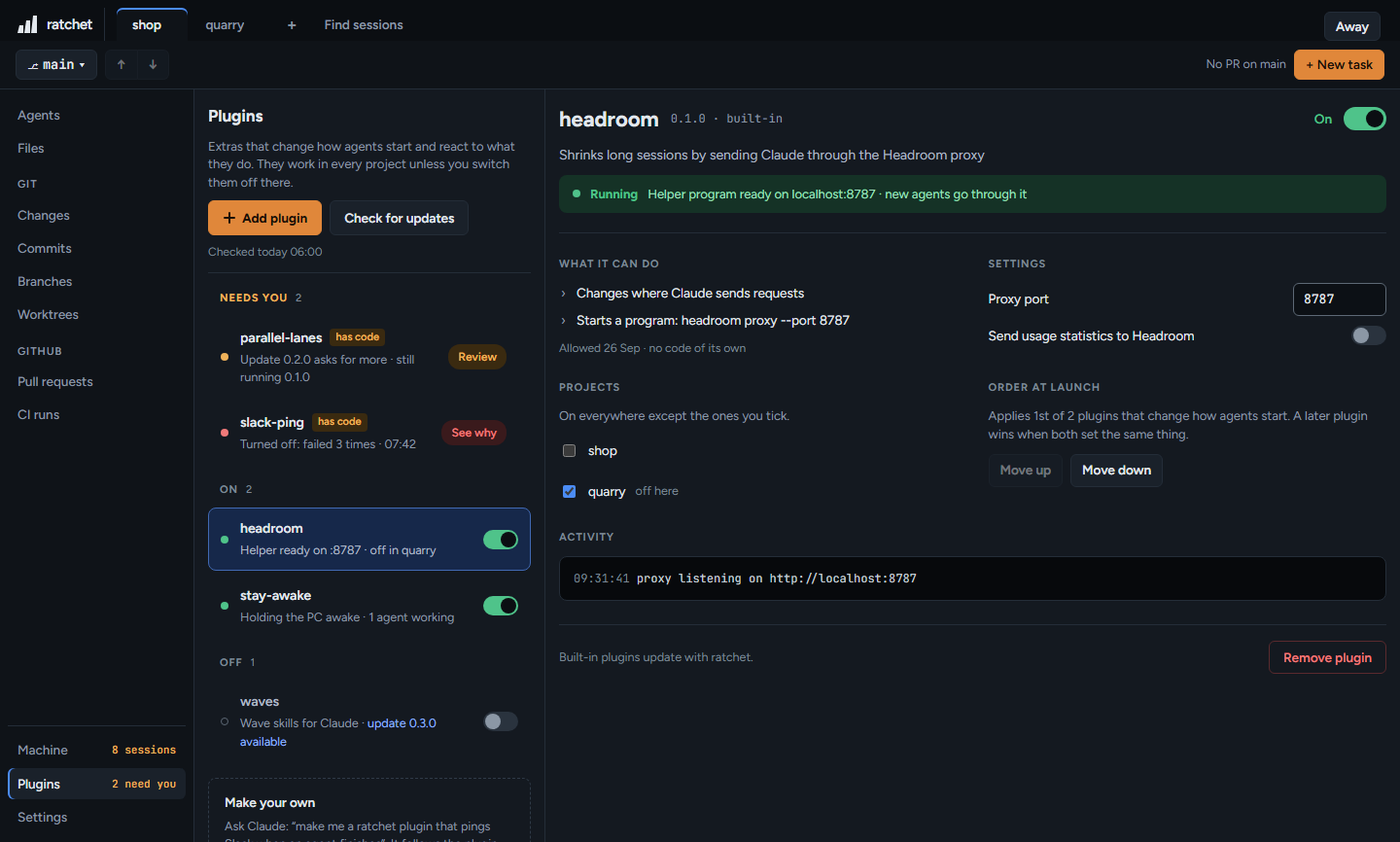
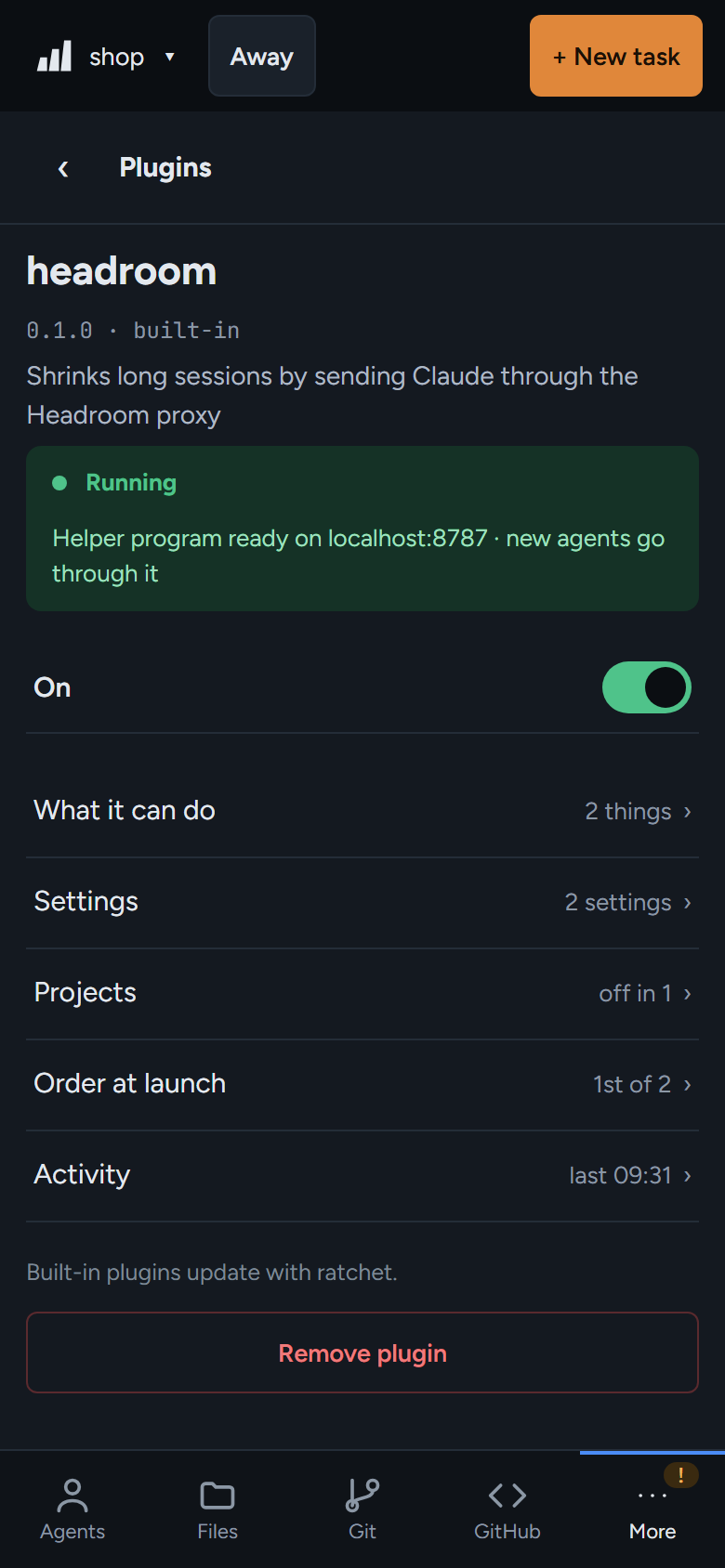
Open Plugins in the sidebar, between Machine and Settings. On the phone it's under More. When a plugin needs you, the sidebar entry says so, for example 1 needs you.
The list has three groups:
- Needs you: a plugin waiting for Allow, an update waiting for Allow, or a plugin with a problem. Its button says Review or See why.
- On and Off, each row with its own switch.
Each row has one status line, written by ratchet, for example Helper ready on :8787, Holding the PC awake · 1 agent working, Waiting for Allow · nothing from it runs yet or Turned off: failed 3 times.
Pick a plugin to see its detail: its version and where it came from, a status strip, Right now (questions waiting on you and agents it started), What it can do with the date you allowed it, Settings, Projects, Order at launch and Activity. On the phone, these sections fold open in place.
Add a plugin
Press Add plugin and pick where it comes from:
| Choice | What you type | What happens |
|---|---|---|
| Folder… | The full path of a plugin folder on this PC | ratchet copies the folder into its plugins folder. Later edits to your original don't change the installed copy. |
| Git link… | An https:// or git@ link to a git repo | ratchet clones the newest commit of the repo's default branch, with your own git login. |
| Pack… | The path of a pack file on this PC, or an https:// link to one | A pack lists several plugins by git link. Each one is installed and asks for its own Allow. |
For a suggested plugin, press Install next to it. You can also copy a plugin folder straight into ~/.ratchet/plugins/; it shows up the same way.
A new plugin is off. It waits under Needs you with Waiting for Allow · nothing from it runs yet.
Allow
Open the plugin and press Review and allow, or flip its switch. The Allow dialog shows where the plugin comes from, its version, and everything it will do.
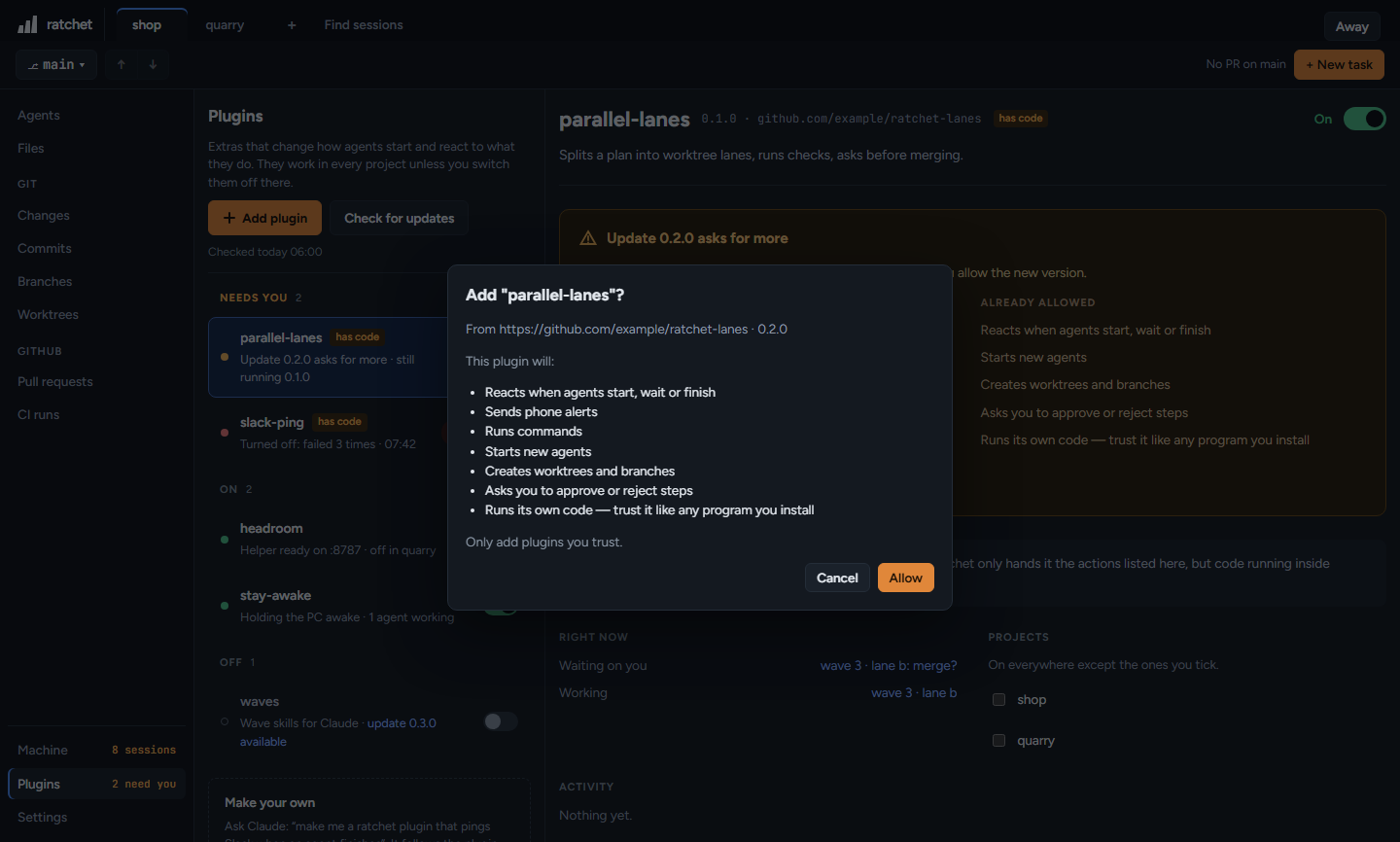
- Allow turns the plugin on.
- Cancel leaves it installed and off, still under Needs you.
Nothing from a plugin runs before you allow it: not its launch changes, not its helper program, not its Claude extras, not its reactions, not its code. There is no setting that skips Allow, not for a suggested plugin and not for a pack.
What each permission means
The lines in the Allow dialog come from ratchet's own list. A plugin can't write its own Allow text.
| You see | What it lets the plugin do |
|---|---|
| Changes settings Claude starts with | Sets environment settings for the agents ratchet starts. If it sets where Claude sends requests, you see Changes where Claude sends requests. Other settings are named, for example Changes settings Claude starts with: MY_FLAG. |
| Adds Claude start options | Adds options to Claude's command line. The line lists them. |
| Adds Claude skills, agents and hooks to your agents | Loads the plugin's Claude extras into every agent ratchet starts. |
| Starts a program | Runs a helper program while the plugin is on. The line shows the exact command, for example Starts a program: headroom proxy --port 8787. |
| Reacts when agents start, wait or finish | Hears when an agent ratchet started starts, works, asks a question, wants permission or finishes. |
| Shows notes on agent cards | Puts one short note on an agent's card. |
| Sends phone alerts | Sends an alert to your paired phones, under the same rules as ratchet's own alerts. |
| Keeps the PC awake | Stops the PC from going to sleep while it holds on. |
| Runs commands | Runs commands on your PC. A plugin without code lists each one, for example Runs a command: node notify.js. |
| Starts new agents | Starts Claude Code agents, with the plugin's label on their cards. |
| Creates worktrees and branches | Makes a git worktree and branch and starts an agent in it. |
| Asks you to approve or reject steps | Asks you a yes or no question with Approve and Reject buttons. |
| Runs its own code — trust it like any program you install | The plugin has code that ratchet runs. Always the last line. |
Plugins with code
A plugin without code can only do what you allowed. ratchet carries out its plugin file and nothing else, and refuses a file that uses something it didn't ask for.
A plugin with code runs inside ratchet, on your PC, with the same rights as ratchet. ratchet only hands it the actions you allowed, but its code could reach further, like any program you install. Only allow code from people you trust.
No plugin can answer an agent's question or permission prompt. Those stay yours, or Away mode's.
Turn a plugin on and off
Use the switch on its row or in its detail. Switching off stops its helper program, its reactions and its code, and new agents start without it. Changes to how agents start apply to agents started afterwards. Agents that are already running keep what they started with.
Off for one project
A plugin works in every project until you say otherwise. Open Projects in its detail: On everywhere except the ones you tick. Tick a project and new agents there start without this plugin's launch changes: its settings for Claude, its start options and its Claude extras. The row then says, for example, off in shop.
Reactions and code still hear about agents in every project. To stop a plugin everywhere, switch it off.
Plugin settings
A plugin can have switches, text fields and number fields. ratchet draws them in the plugin's Settings section. A switch saves when you tap it; a text or number field saves when you leave it. Numbers must stay inside the plugin's limits.
- A secret field shows set once it has a value. ratchet never shows the value again.
- If a required setting is empty, new agents start without the plugin and their card says, for example, slack-ping skipped: needs setting: API token.
- If the plugin runs a helper program, switch the plugin off and on after changing a setting, so the helper restarts with the new value.
Order at launch
When several plugins change how agents start, they apply one after another. Plugins that do get an Order at launch section, for example Applies 1st of 2 plugins that change how agents start. A later plugin wins when both set the same thing. Use Move up and Move down to change it.
When two plugins set the same thing to different values, both rows say so, for example ANTHROPIC_BASE_URL is replaced by headroom, which comes later.
Updates
Only plugins added from a git link or a pack get updates. Folder plugins and the suggested plugins are never checked.
- Daily check. Once a day while ratchet runs, it looks at each plugin's link. The first look comes five minutes after ratchet starts, if a day has passed since the last one. If it finds a higher version, the row says, for example, update 0.3.0 available. It installs nothing, and it doesn't count toward needs you.
- Check now. Check for updates at the top of the page checks every plugin, and the line under it says when, for example Checked today 06:00. Check for update in a plugin's detail checks just that one.
- Update. Press Update to 0.3.0 in the plugin's detail. If the new version asks for nothing new, it replaces the old one straight away.
An update that asks for more
If the new version asks for anything you haven't allowed, the plugin stays on its old version and keeps working as before. It moves to Needs you with, for example, Update 0.2.0 asks for more · still running 0.1.0.
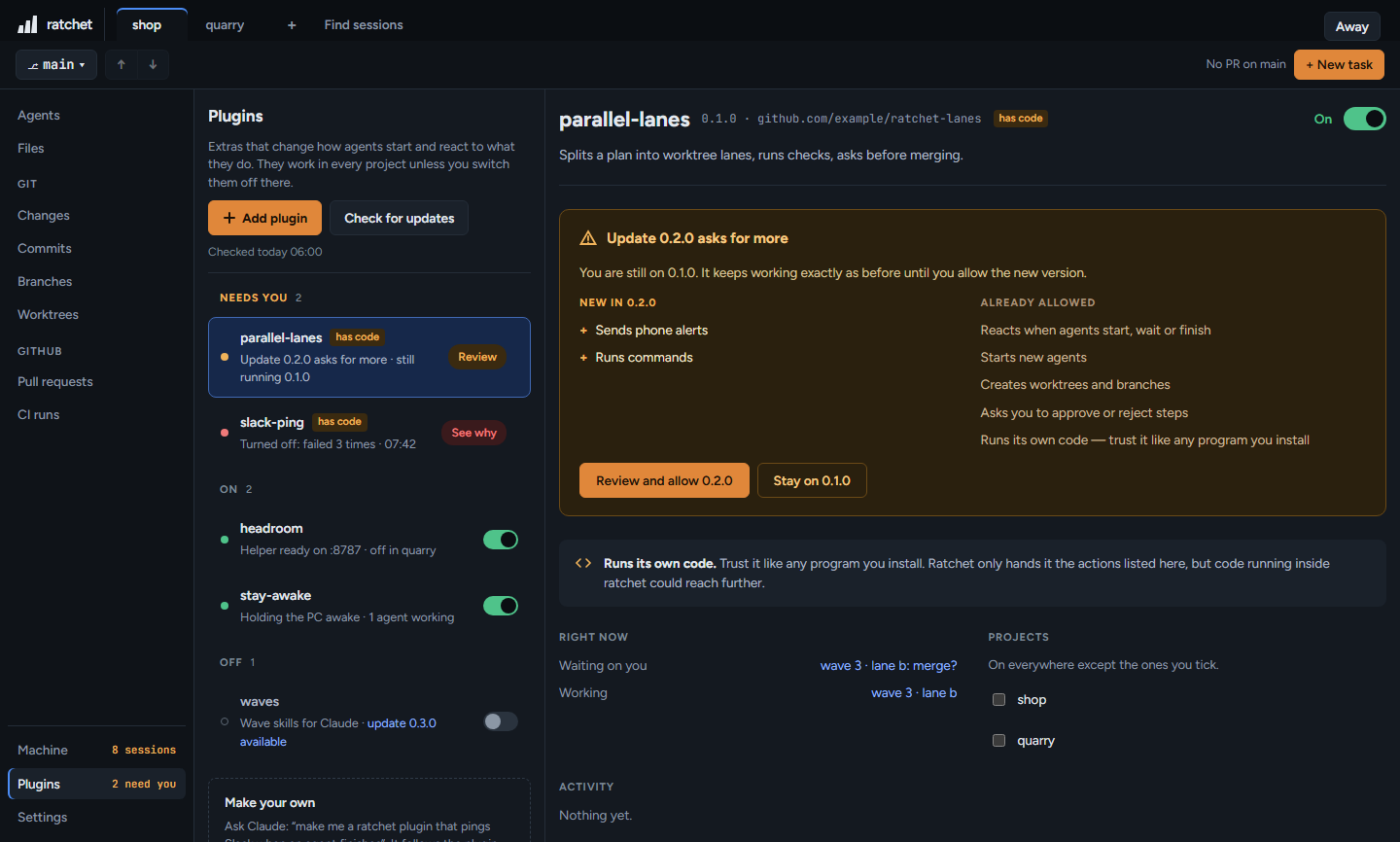
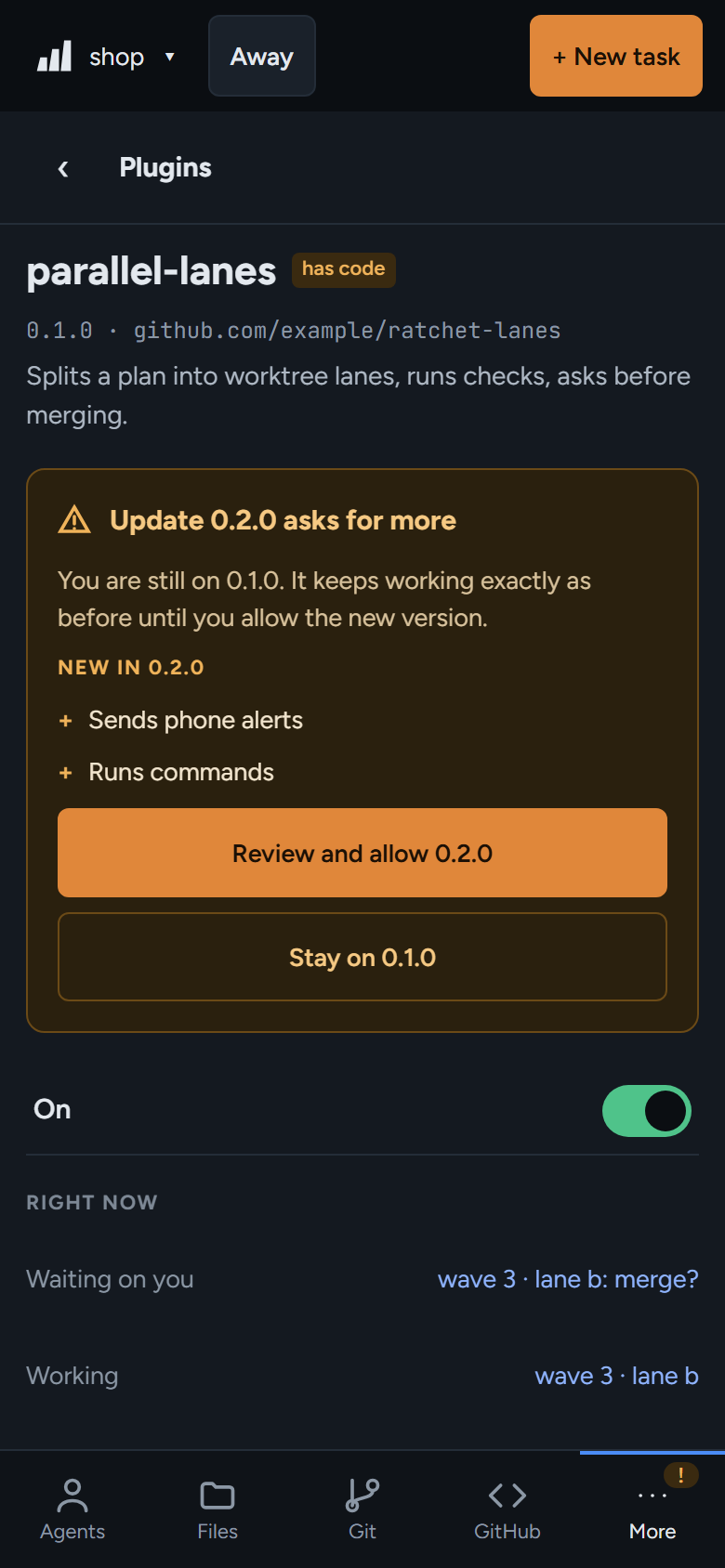
- Review and allow 0.2.0 opens the Allow dialog with the new version's full list. Allow switches to the new version.
- Stay on 0.1.0 drops the downloaded update and keeps the old version.
ratchet compares the lists of permissions, not their wording, so a reworded plugin can't slip a new permission past you.
Approve or reject a step
A plugin with the right permission can ask you a yes or no question about one of its agents, for example 3 lanes done, checks green — merge?
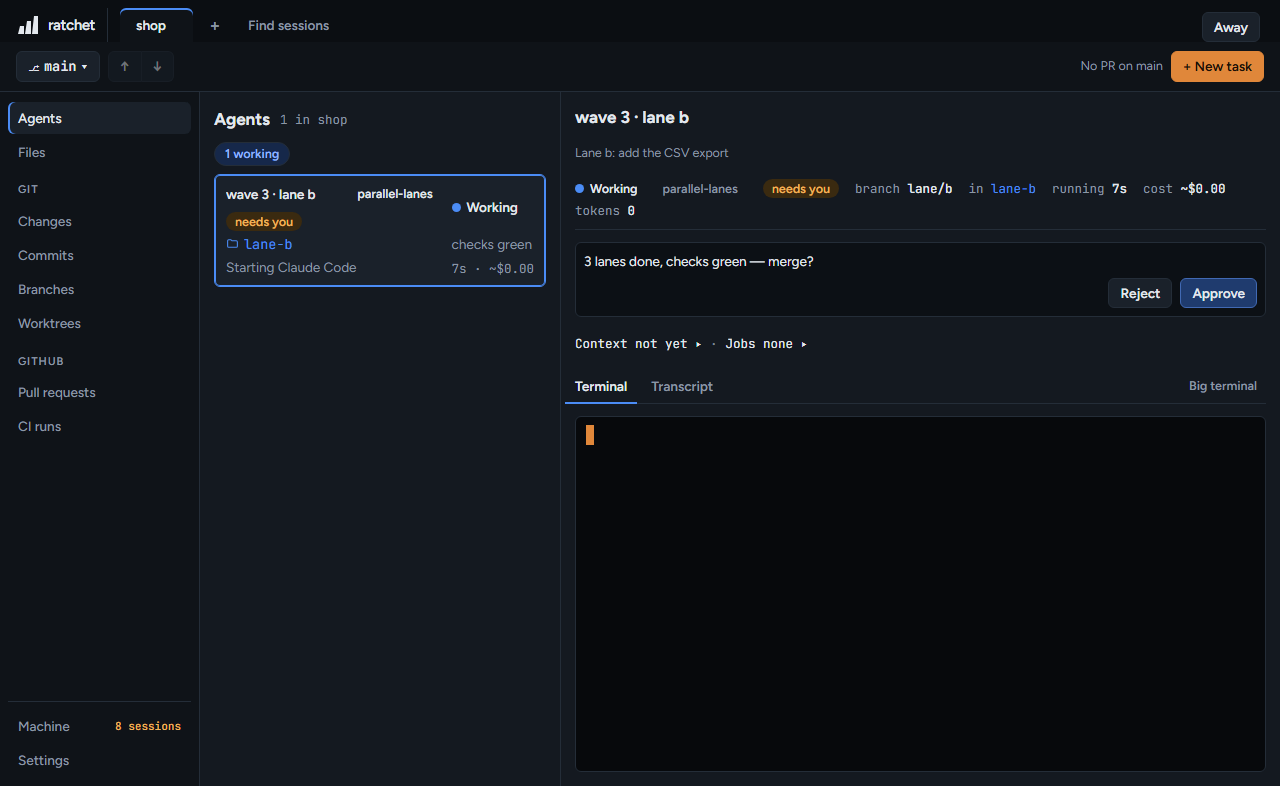
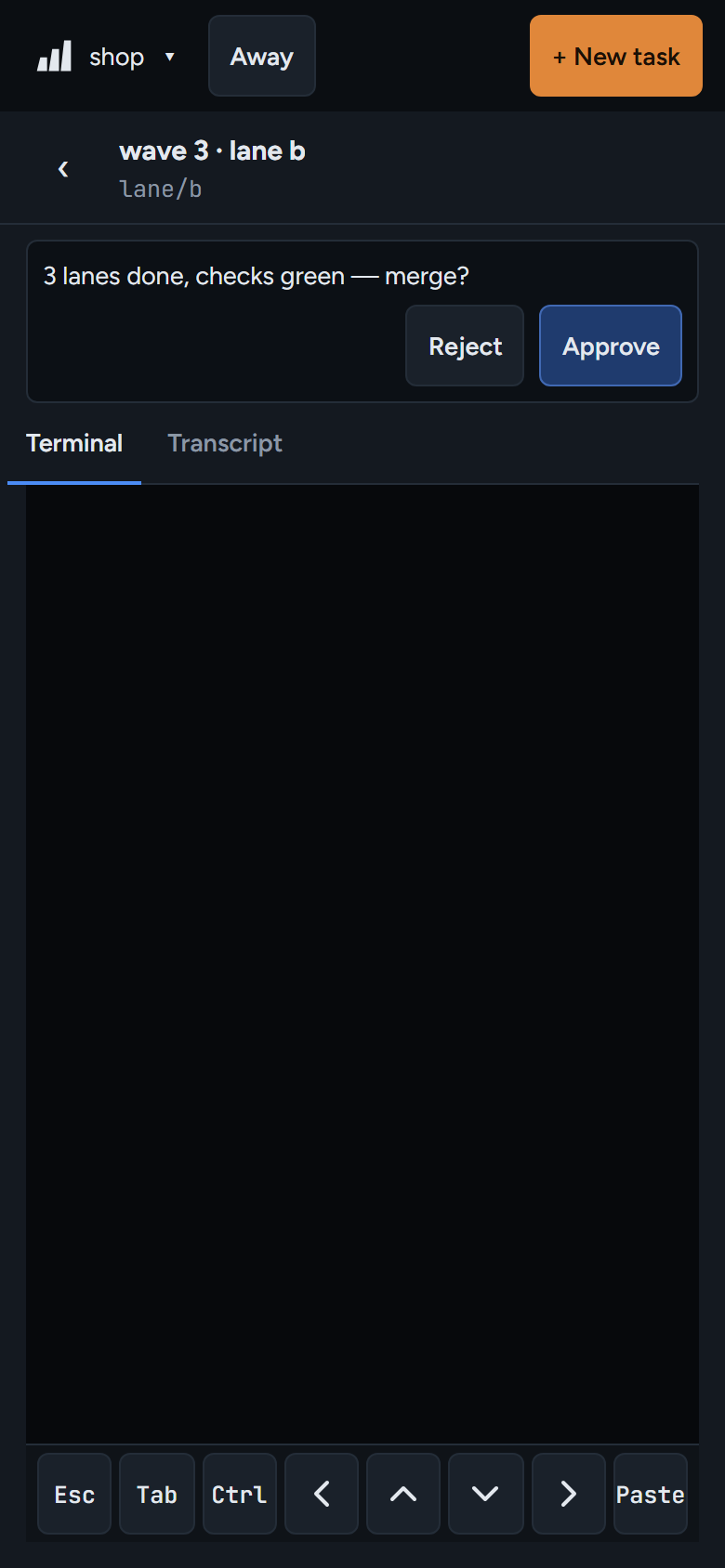
- The agent's card says needs you, and you get a phone alert if phone alerts are set up.
- The agent's detail shows the question with Reject and Approve. Your answer goes back to the plugin, even if ratchet restarted in between.
- Away mode never answers a plugin's question. It waits for you.
Agents a plugin starts carry its label as their title, for example wave 3 · lane b, with the plugin's name next to it. A worktree a plugin made says made by plugin parallel-lanes in Worktrees. The plugin's Right now section lists its open questions and running agents.
Plugin alerts
Settings → Notifications has a Plugin alerts switch, on by default. Plugin alerts follow your quiet hours and repo switches like every other phone alert. An alert about an agent opens that agent. An alert without one, like a plugin being turned off, opens Plugins.
When a plugin fails
A plugin problem never stops an agent. If a plugin can't apply when an agent starts, the agent starts without it and its card says why:
| Card note | Meaning |
|---|---|
| headroom skipped: not installed | The helper program isn't on this PC. The plugin's detail shows how to install it. ratchet never installs it for you. |
| headroom skipped: not responding | The helper program is still starting, or stopped answering. |
| … skipped: needs setting: … | A required setting is empty. |
An error, a call into the plugin that takes longer than 5 seconds, or a helper program that won't start each count as a failure. After 3 failures in a row, ratchet turns the plugin off:
- its row says Turned off: failed 3 times, with the time;
- one phone alert says Plugin headroom turned off: it failed 3 times;
- ratchet and your agents keep running.
Press Show log to see what went wrong. Fix the cause and switch the plugin back on. If it fails again before it works once, it turns off again straight away. Any call that works resets the count.
A helper program that exits is restarted once. If it exits again, or isn't ready within a minute of starting, the row says Problem: the helper is not responding and new agents start without the plugin.
Activity shows the plugin's last 5 log lines. Show all opens up to 200. The log lives in memory, so restarting ratchet clears it.
Remove a plugin
Press Remove plugin at the bottom of its detail and confirm: Remove headroom? Its files and its memory folder are deleted. Its helper program stops and its open questions are dropped.
Where plugin files live
Everything is under ~/.ratchet/ (%USERPROFILE%\.ratchet on Windows).
| Path | What's in it |
|---|---|
plugins/<name>/ | The installed plugin. |
plugin-data/<name>/ | The plugin's memory folder. It survives restarts and updates, and is deleted only when you remove the plugin. |
settings.json | Which plugins are on, what you allowed, their settings, the order and the projects they're off in. |
plugin-asks.json | Approve or reject questions and your answers. |
plugins/.incoming/ | Downloads in progress and updates waiting for Allow. |
Want to make your own? See Writing plugins.